Socotra Assistant Actions
The Operations Workbench features a sidebar for the Socotra Assistant, which includes a set of buttons that perform common underwriting tasks called actions. Some actions are executed by the Socotra Assistant, while others are executed without AI assistance.
The following actions are available within the Socotra Assistant sidebar:
Extract fields from documents
Check for missing or invalid fields
Check underwriting rules
Generate underwriting insights
Create necessary documents
Price risk
Create underwriting summary
Bind quote
Issue policy
Follow the instructions here to get started with the Socotra Assistant.
Actions
Extract fields from documents

This action allows you to upload typed or hand-written documents, such as ACORD forms, and the Socotra Assistant will send them to AWS Textract, which will extract the document data. The assistant will then automatically add the extracted data to your quote, eliminating the need for underwriters to add data to quotes manually.
Once the process is complete, details about the extracted data will be displayed within the action panel.
Files must be in one of the following formats: .pdf, .png, .jpg, .jpeg, .tif, .tiff, .csv, .txt. You can upload up to 10 files at once.
Check for missing or invalid fields

This action performs default validation checks and executes the Validation Plugin if it has been implemented.
Once the process is complete, the validation results will be displayed within the action panel, and you can ask the Socotra Assistant chatbot to help fix validation issues.
For example:
Check underwriting rules

This action executes the Underwriting Plugin statelessly if it has been implemented. If the plugin has not been implemented, the quote will automatically pass this underwriting check. No AI is used for this action.
Once the process is complete, the results of the underwriting check will be displayed within the action panel.
Generate underwriting insights

This action analyzes your quote against a set of risk assessment criteria. You can upload a document containing risk assessment criteria by following the instructions below:
Navigate to the System Manager tab at the top of the page.
Click on Tenants.
Select a tenant.
Navigate to the Assistant Configuration tab on the left side of the page.
Select your product in the dropdown menu underneath the Assistant Configuration label.
Click the Risk Assessment Criteria tab.
Click the Upload Document button to upload a document.
You can edit documents using markdown formatting in the Write tab, and preview the final document formatting in the Preview tab.
Click the Save button at the bottom of the page once your changes are complete.
Files must be in .md format. You can only upload one file at a time.
Return to the Socotra Assistant sidebar and click the Generate button. Once the process is complete, the results of the analysis will be displayed within the action panel. Each result may contain buttons that can be used to perform relevant actions based on the result.
Create necessary documents

This action creates documents based on document templates. The Socotra Assistant will automatically add quote data to the documents. You can upload document templates by following the instructions below:
Navigate to the System Manager tab at the top of the page.
Click on Tenants.
Select a tenant.
Navigate to the Assistant Configuration tab on the left side of the page.
Select your product in the dropdown menu underneath the Assistant Configuration label.
Click the Document Templates tab.
Select a document type.
Click the Upload Document button to upload a document.
You can edit documents using markdown formatting in the Write tab, and preview the final document formatting in the Preview tab.
Click the Save button at the bottom of the page once your changes are complete.
Files must be in .md format. You can only upload one file at a time.
Return to the Socotra Assistant sidebar and click the Draft button. Once the process is complete, you can download your documents by clicking the Download documents button.
Price risk

This action executes the Rating Plugin if it has been implemented. If the plugin has not been implemented, this action will fail. No AI is used for this action.
Create underwriting summary

This action creates an editable underwriting summary.
Once the process is complete, you can edit the summary, then save the summary to your notes by clicking the Save to notes button. Once the note has been saved, you can view the note by clicking the View notes button. Embedded work management must be enabled before using the notes feature.
Click the down arrow next to the Notes label at the top of the sidebar, then click Socotra Assistant to return to the Socotra Assistant.
Bind quote

This action moves the quote to the accepted state. No AI is used for this action.
Issue policy

This action moves the quote to the issued state and creates a policy. No AI is used for this action.
Chat
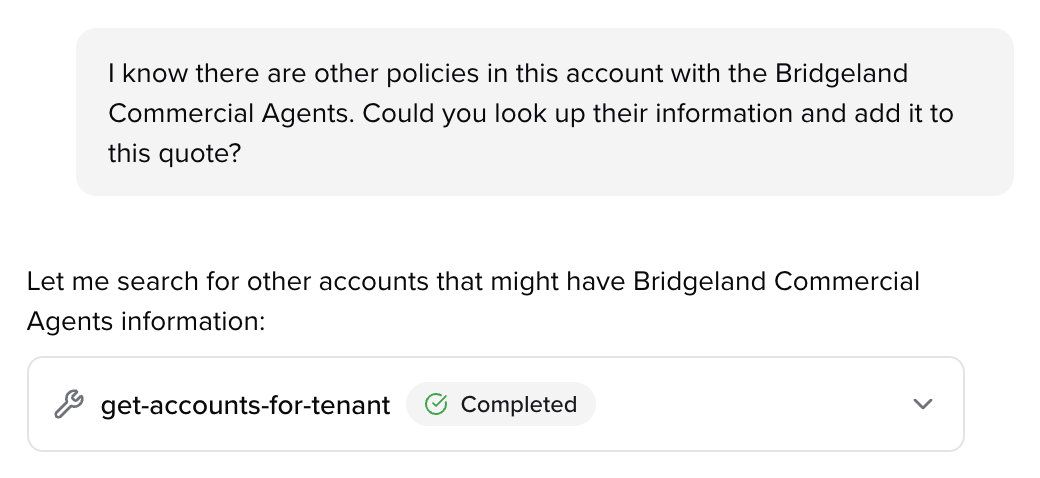
You can chat directly with the Socotra Assistant and ask it to perform additional tasks by clicking on the Chat tab in the sidebar. The chatbot uses Socotra MCP server tools to respond to prompts.
Here are a few example prompts:
“Copy data from a similar quote to this quote.”
“Recommend values for these fields, and add the recommended values to the quote.”
“Identify any potential issues with this quote.”